10 Tips for Connecting Wearables to Your Mobile Device
Explore 10 expert tips for connecting wearables to your mobile device, with troubleshooting, syncing advice, and buyer-friendly solutions.
In the ever-evolving tech landscape, Tips for Connecting Wearables to Your Mobile Device have become as essential as the devices themselves. Whether it’s a fitness tracker, a smartwatch, or a hybrid wearable, syncing them with your phone ensures you get real-time updates, activity tracking, and seamless control—all from your wrist.
Why Wearable-Mobile Connectivity Matters
Health Tracking and Real-Time Sync
Your wearable becomes practically useless if it can’t communicate with your smartphone. From heart rate monitoring to sleep tracking, instant sync enables better health insights, faster data uploads, and personalized recommendations. Devices like Fitbit and Apple Watch thrive on real-time data exchange to deliver value.
Enhanced Notifications and App Integration
A connected wearable can alert you to messages, calls, social updates, and app alerts—even while your phone stays in your pocket. Integration with apps like Google Fit, Apple Health, or Samsung Health amplifies your experience through central dashboards and connected services.
Understanding How to Sync Smartwatch with Android/iPhone
Bluetooth Basics: The Invisible Bridge
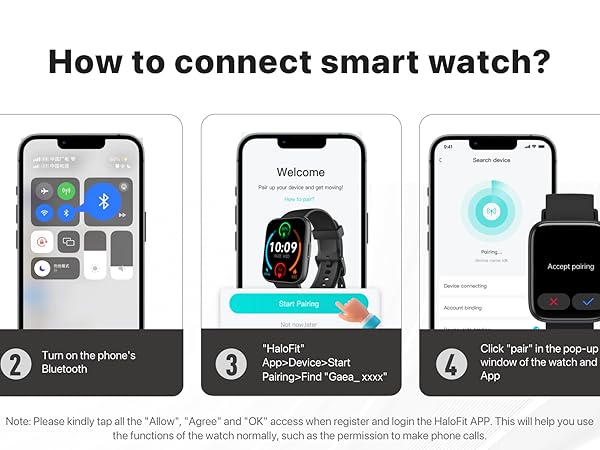
Bluetooth is the unsung hero of most wearable connections. Make sure both devices have Bluetooth turned on. Newer versions like Bluetooth 5.0 offer better range, lower latency, and enhanced stability—crucial for syncing a smartwatch with Android or iPhone.
Companion Apps: The Key to Full Functionality
Devices like Apple Watch require the Apple Watch app, while Garmin uses Garmin Connect. Download these official apps and keep them updated to access full functionality, from GPS tracking to phone call support.
Tips for Connecting Wearables to Your Mobile Device: A Quick Checklist
Ensure Compatibility Before You Buy
Not all wearables play nice with every phone. For instance, the Apple Watch won’t work with Android. Before buying, check the product page or visit trusted sources like CNET or Amazon for compatibility details.
Enable Bluetooth and Keep Devices Close
Keep the wearable and smartphone within two feet during pairing. Interference increases with distance. Also, ensure Bluetooth is not being used by too many active devices simultaneously.
Update Firmware and Apps Regularly
Outdated firmware or companion apps often cause sync errors. Visit your app store and device settings regularly to check for updates.
Use the Official Companion App
Always use the official app provided by the manufacturer. Third-party apps may lack full support or result in incomplete data syncing.
Reset and Reconnect If Pairing Fails
If you’re stuck, reset the wearable to factory settings and try again. This often clears bugs and reboots the Bluetooth module.
Avoid Interference from Other Devices
Too many devices competing for Bluetooth can cause connection drops. Turn off unnecessary Bluetooth accessories like earbuds or car systems during pairing.
Keep Battery Levels Above 50% During Pairing
Low power can disrupt Bluetooth pairing and firmware updates. Ensure both your phone and wearable are adequately charged.
Try a Manual Connection via Bluetooth Settings
Sometimes going the manual route through your phone’s Bluetooth settings can force a sync when auto-pairing fails.
Allow Necessary App Permissions on Your Phone
Access to location, contacts, Bluetooth, and background activity is often required. Denying these may cause partial syncing or failure.
Sync One Wearable at a Time for Best Results
Trying to pair multiple wearables simultaneously can confuse your device. Unpair other accessories before starting the connection.
Troubleshoot Wearable Not Connecting to Phone
Common Sync Errors and How to Fix Them
Are you constantly seeing “Unable to Connect” messages? Often, toggling Bluetooth off/on, restarting both devices, or reinstalling the companion app can solve these.
Clearing Cache/Data for Stubborn Apps
If you’re on Android, go into app settings and clear cache or data for the wearable app. This often fixes lingering bugs without losing data.
Best Wearable Device Connectivity Tips by Brand
Apple Watch and iPhone
Use the Apple Watch app, make sure both devices are updated, and enable Wi-Fi and Bluetooth. Apple’s ecosystem ensures tight integration but is limited to iPhones only.
More tips: Apple Support
Samsung Galaxy Watch with Android and iOS
Samsung’s Galaxy Wearable app supports Android phones and limited iOS integration. For best results, pair it with a Samsung phone using Bluetooth and Wi-Fi Direct.
Learn more: Samsung Wearables
Fitbit, Garmin, and Other Fitness-Focused Wearables
Devices like Fitbit and Garmin emphasize fitness tracking but still need app permissions and proper pairing. Garmin users should use Garmin Connect, while Fitbit has its dedicated app.
Trusted source: Garmin | Fitbit
Expert Buying Tips for Wearables That Sync Smoothly
Look for Cross-Platform Compatibility
If you switch phones often, choose wearables like Fitbit or Garmin that work across platforms. Avoid device-specific models unless you’re deep into an ecosystem.
Check App Ratings and Update Frequency
Visit the Google Play Store or Apple App Store and check reviews for connectivity issues. Frequent app updates are a green flag.
Invest in Devices with Proven Sync Track Records
Stick to brands known for stable performance. Apple, Samsung, Fitbit, and Garmin lead the pack. Look for user-reported connectivity strengths on platforms like TechRadar or TrendHunter.
Final Thoughts: Staying Connected in a Wearable World
Getting the most from your wearable begins with solid syncing. Whether it’s learning how to sync a smartwatch with Android/iPhone, avoiding Bluetooth hiccups, or diving into the best wearable device connectivity tips, your journey to seamless tech starts here. As our devices become smarter, staying wirelessly connected is more vital than ever.
Read Also: Best Wireless Earbuds for Running
FAQs – (Tips for Connecting Wearables to Your Mobile Device)
How do I sync my smartwatch with an iPhone?
Download the official app, enable Bluetooth, and follow in-app pairing instructions. For Apple Watch, use the Watch app.
What to do if my wearable won’t connect to my phone?
Restart both devices, toggle Bluetooth, and try resetting the wearable to factory settings. Reinstall the companion app if needed.
Can I use one wearable on multiple phones?
Generally, no. Most wearables are designed to stay paired with one device at a time unless you re-pair from scratch.
Which wearables have the best connectivity?
Apple Watch (with iPhone), Samsung Galaxy Watch, and Fitbit models are known for reliable syncing.
Does syncing affect battery life?
Yes, especially during initial pairing and firmware updates. Ensure devices are charged and monitor battery usage.
Are there universal apps to sync all wearables?
Not really. Each brand has its own app, and third-party alternatives may have limited features or reliability.