How to Enhance Your Productivity with iPhone Tools – The Ultimate 2025 Guide
Learn how to enhance your productivity with iPhone tools in 2025. Discover top apps, automation tips, multitasking tricks, and expert advice to work smarter.
Introduction – Why the iPhone Is a Productivity Powerhouse in 2025
The iPhone has transformed from a simple communication device into a robust productivity platform. Thanks to powerful hardware, intuitive software, and an ecosystem packed with smart tools, the iPhone helps professionals, students, and creatives streamline their day. This post dives into how to enhance your productivity with iPhone tools—covering built-in features, top apps, automation hacks, and expert tips to maximize your efficiency in 2025.
For ongoing updates on iPhone productivity, visit Apple’s official productivity page.
Essential iPhone Tools That Boost Productivity Every Day
Notes and Reminders
The revamped Notes app supports scanning, rich text, checklists, and real-time collaboration. Combine it with Reminders, which now supports tags and location-based alerts to keep tasks on track.
Calendar and Scheduling
The native Calendar syncs with Google, Outlook, and more, offering rich event management, alerts, and integration with Focus mode to minimize interruptions.
Focus Mode and Notifications
Apple’s Focus mode customizes notification settings based on your current activity—work, personal time, or sleep. Customize allowed apps and contacts for each mode, reducing distractions and improving focus.
Best iPhone Productivity Apps 2025 You Shouldn’t Miss
Microsoft Outlook
Perfect for email and calendar management, Outlook offers a unified inbox, AI-powered scheduling, and integrates seamlessly with Microsoft 365.
Todoist
A powerful task manager with natural language input, reminders, and project collaboration features.
Notion
Combines notes, tasks, databases, and calendars into one flexible app ideal for personal and team productivity.
Fantastical
A premium calendar app that supports natural language event creation, weather forecasts, and integrates with multiple calendar services.
Discover these apps and more at CNET’s Best Productivity Apps for iPhone.
How to Use Siri and Shortcuts to Automate Daily Tasks
With Siri and the Shortcuts app, you can automate complex workflows—like sending daily status emails, starting your favorite playlists, or setting reminders with a single phrase. For instance, create a “Morning Brief” shortcut that reads your calendar events, weather, and reminders automatically.
Learn more at Apple’s Shortcuts User Guide.
Tips to Boost Productivity on iPhone with Multitasking Features
Picture-in-Picture Mode
Continue video calls or watch tutorials while taking notes in another app.
App Switching and Split View
Quickly swap between apps or use split-screen on iPad for true multitasking.
Utilizing iCloud for Seamless Cross-Device Workflow
Sync your files, photos, and app data effortlessly between iPhone, iPad, and Mac. iCloud Drive supports shared folders, enabling real-time collaboration.
For more, visit Apple iCloud.
How to Organize Your iPhone Home Screen for Maximum Efficiency
Use widgets to get real-time info at a glance. Group similar apps into folders and place your most-used apps on the dock for easy access.
Leveraging Safari and Reading List for Research and Reading
Save articles offline with Safari’s Reading List, and use extensions like Grammarly and Pocket to enhance research and writing productivity.
Top iPhone Tools for Remote Work 2025
Apps like Zoom, Microsoft Teams, and Slack have optimized iOS versions that integrate with system notifications and widgets, making remote collaboration smoother.
Using Apple Pencil and Markup for Creative Productivity
Take handwritten notes, annotate PDFs, and sketch ideas directly on your device, enhancing workflows for creatives and professionals.
Best Practices for Managing Notifications and Focus Modes
Set custom Focus modes for work, personal, and rest. Schedule Do Not Disturb during meetings or sleep hours to minimize interruptions.
Expert Buying Tips – Choosing the Best iPhone for Productivity in 2025
- Screen Size: Bigger displays (6.7”+) enhance multitasking.
- Battery Life: Aim for phones with all-day battery performance like iPhone 15 Pro Max.
- Storage: 256GB+ recommended for heavy users dealing with files and apps.
Check the latest pricing and specs on Apple’s Store.
Common Productivity Challenges on iPhone and How to Overcome Them
- Avoid app overload by uninstalling unused apps.
- Use Focus modes to minimize distractions.
- Manage multitasking limits by closing unused apps to free memory.
How to Secure Your Productivity Data on iPhone
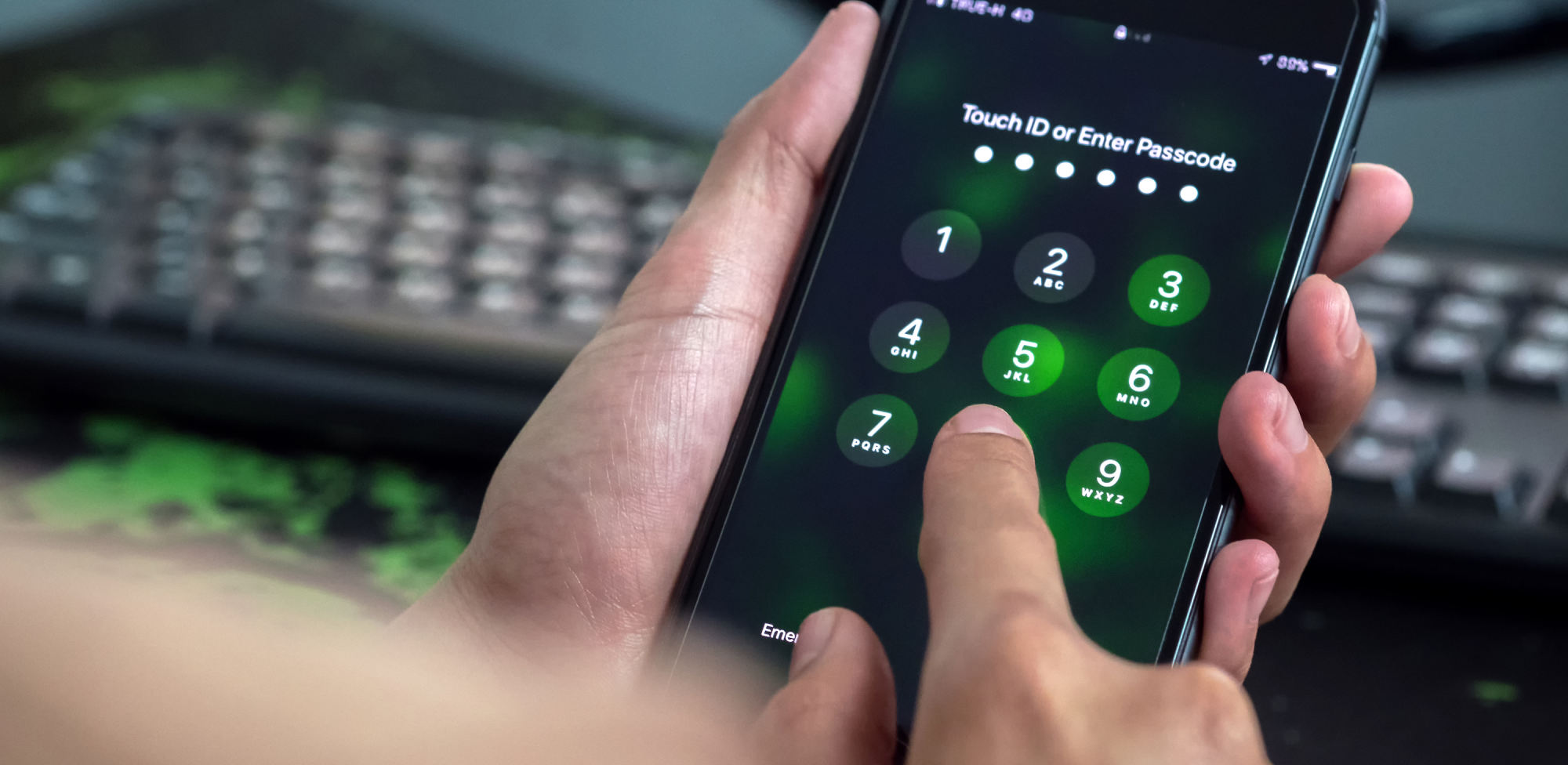
- Enable Face ID or Touch ID for secure access.
- Use two-factor authentication (2FA) for Apple ID and apps.
- Regularly backup to iCloud to avoid data loss.
Learn more about securing your iPhone at Apple Security.
Conclusion – Make 2025 Your Most Productive Year with iPhone Tools
Mastering how to enhance your productivity with iPhone tools unlocks your full potential—whether managing work tasks, collaborating remotely, or organizing your personal life. With a combination of smart hardware, powerful apps, and intuitive OS features, your iPhone can become your ultimate productivity companion.
Read Also: Latest Smartphone OS Updates and Features
FAQs – Boosting Productivity with iPhone Tools
- What are the best productivity apps for iPhone in 2025?
Microsoft Outlook, Todoist, Notion, and Fantastical top the list for productivity. - How can Siri Shortcuts improve my workflow?
They automate repetitive tasks, saving you time and effort daily. - Does Focus Mode really help reduce distractions?
Yes, by filtering notifications based on your current activity or location. - Can iPhone multitasking match desktop efficiency?
While not identical, features like Picture-in-Picture and split-screen boost multitasking considerably. - How do I keep my productivity data safe on iPhone?
Use biometric locks, enable 2FA, and back up your data regularly to iCloud.